
The eSIM is a game-changer for connected travelers. No more juggling traditional SIM cards upon arrival at your destination: everything is done remotely, directly from your smartphone. Discover the real differences between physical SIM cards and eSIMs, and how to use both technologies simultaneously when traveling abroad.
Differences between physical SIM card and eSIM
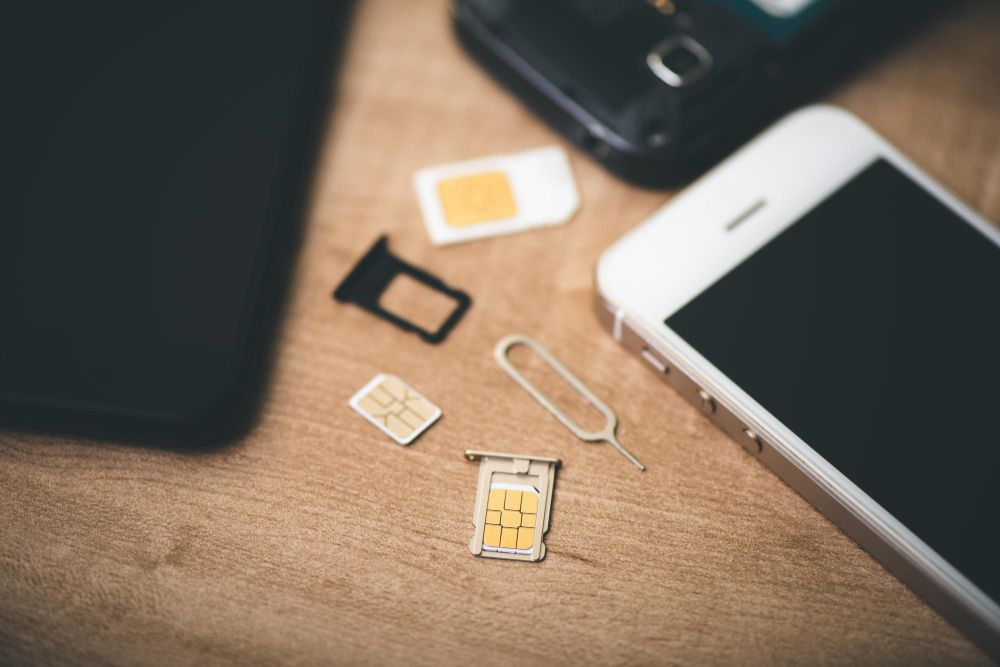
Unlike traditional SIM cards, eSIMs are digital SIM cards directly integrated into the device. This allows for faster and more secure setup.
You can install an eSIM without going through a point of sale or waiting for postal delivery. Since the eSIM is embedded in the phone, it cannot be removed or stolen.
No physical manipulation means fewer technical problems related to wear and tear or poor contacts. eSIMs are more eco-friendly, and therefore more sustainable, as they avoid plastic production and unnecessary shipping.
Using a SIM card and an eSIM simultaneously: how-to guide
If your smartphone is Dual SIM compatible, you can use both a physical SIM card and an eSIM. This can be practical for separating professional and personal use, or for activating a local line during a trip while keeping your main line active.
1. Label your plans
To avoid confusion, assign a name to each line (e.g., “SIM France” and “eSIM Thailand”).
On iOS:
- Open Settings > Cellular.
- Tap on your eSIM, enter a custom name, then save.
On Android:
- Go to Settings > Network & internet > SIM cards.
- Select your eSIM and name it.
2. Activate your eSIM
On iOS:
- Open Settings > Cellular.
- Select your eSIM.
- Activate Turn On This Line and Data Roaming.
- Choose a supported network if necessary.
On Android:
- Go to Settings > Network & internet > Mobile network.
- Activate the eSIM, Mobile data, and Roaming.
3. Set your default lines
Voice calls:
Choose which card to use for outgoing calls and SMS.
- iOS: Settings > Cellular > Default Voice Line.
- Android: Settings > Network > SIM card > Calls/SMS.
Mobile data:
Choose the line to use for internet access.
- iOS: Settings > Mobile data > select eSIM.
- Android: Settings > Mobile network > select eSIM.
Switching from an eSIM to a physical SIM card (or vice versa)
You can temporarily deactivate your eSIM at any time, for example after a trip, and reactivate your usual SIM card for calls and data. This avoids having to reinstall an eSIM profile later.
Deactivate an eSIM
- iOS: Settings > Mobile Data > eSIM > deactivate.
- Android: Settings > Connections > Mobile network > deactivate eSIM.
Is your phone compatible with eSIMs?

Most recent smartphones (since 2018) are compatible with eSIM technology. However, your device must also be unlocked (not tied to a specific carrier).
To check, consult the official list of compatible models or dial *#06# on your device to see if it displays an EID (eSIM identifier) number.
Dual SIM smartphones also allow you to combine an eSIM and a physical SIM in parallel. This is ideal for travelers who want a local line while keeping their main number active.